Bots with names, working on your own computer.
Yo Bot is a desktop app. Give each Bot a name, a job and a folder. They read your files, keep your calendar and run on a schedule, and they ask before they change anything that matters.
Version 0.2.0. The Windows build is not signed yet: choose More info, then Run anyway.
 Penny
Canvas
A canvas the Bot builds for you.
Ask for a day-trip plan, a study guide or a quiz, and the Bot lays it out on a board you can use: tick the list, flip the cards, answer the questions. What you got wrong comes back when it is due, and a draft event goes to your calendar with one press.
Shadowing
Practise spoken English, one line at a time.
Give the Bot an article and it becomes a shadowing lesson. Listen to a line, record yourself, and see which words you said and which you missed. Slow the audio down or repeat a single line. Speech is recognised on your computer, and your recordings stay there.
How to use itDashboard
A dashboard on your own numbers.
Point a Bot at a spreadsheet, a CSV or a Parquet file and ask for a dashboard. You get figures, trends and breakdowns that you can filter by date, compare with the period before, and rearrange by hand. Press Ask on any card to question the number behind it. The data never leaves your folder.
How to use itCoding
Hand a coding task to Pi.
Pi is a coding agent that runs on your computer. A Bot gives it the task, Pi works on its own branch in a separate copy of the project, and you get a review: what it did, which files changed, whether the checks passed. Keep the branch, merge it or discard it. A merge always asks you first.
How to use itVoice ask
Press a shortcut and ask about your screen.
Press ⌥ Space on a Mac, or Alt + Space on Windows, and say what you need. Yo Bot takes one picture of your screen at that moment, and the Bot's answer appears in a card beside your pointer. Your speech is turned into text on your computer. You see the picture and can remove it before anything is sent, and nothing is captured in the background.
How to use itAnd how it works with you
Bots
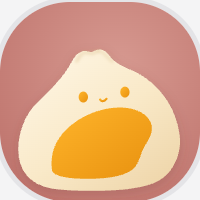
Each Bot has a name, a job and a dim sum face.
The avatars take after Cantonese dim sum. A Bot keeps its own work folder, its own memory and the tools you gave it. You always know who is speaking and what they are busy with: the avatar says who, one status word says what.
How to use it Sage
 Milo
 Rhea
Approvals
It asks before anything that matters.
Sending mail, changing your calendar, running a risky command: each one shows a card and waits. You choose how much a Bot may do alone, and save rules for what you always allow. Commands run inside a sandbox, and every action is written to a log you can read.
How to use itFiles
The work lands in your files.
Bots read Word, Excel, PowerPoint and PDF files, and write their results as real documents and spreadsheets in the folder you chose. Edit a document together and hand it back to Word. Ask for a chart or a dashboard on your own data.
Routines
It keeps working while you're away.
A Routine starts a Bot on a schedule, before a calendar event, or when a folder changes. Come back to a morning brief, a filed receipt, notes ready for the meeting. When a Bot needs you, its row says so and it waits.
How to use itEngagements
Bigger jobs get a team.
Put several Bots on one Engagement. They divide the work, review each other and bring you the result. You approve the plan before it starts and accept the work at the end.
How to use itWorkbench
See what it did, not only what it said.
The Workbench shows the steps of a run, the files it touched and the changes inside them. A change you don't like can be undone.
Also inside
- Your own AI accountBring an API key from Anthropic or any OpenAI-compatible provider, or sign in with a ChatGPT subscription. Each Bot can use a different model.
- ConnectionsGoogle Calendar, Gmail and Drive, Notion, and any MCP server.
- A browser of its ownA Bot can open pages and fill in forms. When a site needs your password, it hands the page to you.
- Make it yoursThree bubble styles, a serif or a system reading face, and separate sizes for the interface and the conversation.
- Documents with WordWrite a document together with a Bot, leave notes in the margin, and hand the file to Word and back.
- Memory you can readEach Bot keeps notes on what you told it. Open the page to see every line and where it came from.
- Skills and pluginsTeach a Bot a repeatable job once, or install one that someone else wrote.
- Three languagesEnglish, Simplified Chinese and Traditional Chinese. Switch at any time.
Your data stays with you.
Yo Bot runs on your computer. No Yo Bot server stores your data, there is no Yo Bot account, and there are no analytics in the app or on this site. What your Bots read is sent only to the AI provider you chose, to answer your request.
Read the privacy policy